ClickFix Attacks: A Plain-English Guide
What it is
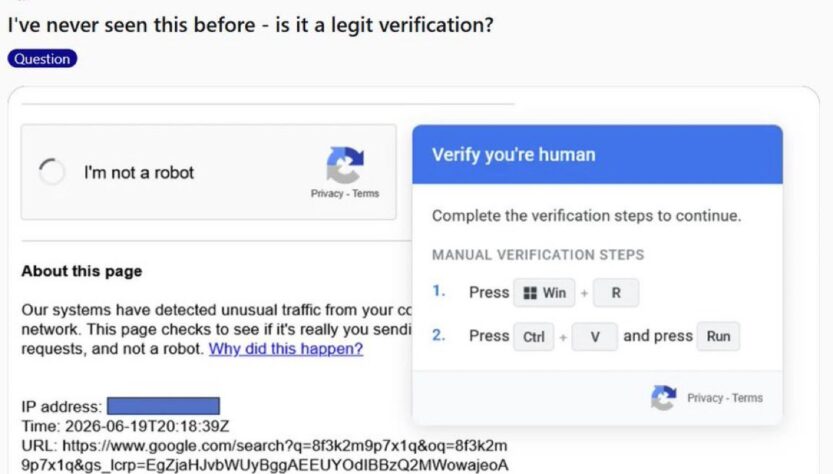
ClickFix is a social engineering trick. Instead of getting you to download a sketchy file, attackers trick you into running malicious commands yourself — by making you believe you’re “fixing” something.
DO NOT touch that keyboard. This is one of the most dangerous attacks circulating right now.
— Abdulkadir | Cybersecurity (@cyber_razz) June 20, 2026
This is called a ClickFix attack. It is not a CAPTCHA. It is not a verification step. It is a social engineering attack designed to make you execute malicious code on your own machine… pic.twitter.com/hG71ou9tnK
The classic setup: you land on a webpage (often via a malicious ad, hacked legitimate site, fake CAPTCHA, or phishing email) that shows an error message like “Document failed to load” or a fake “I’m not a robot” verification box. It tells you to:
- Press
Windows key + R(opens the Run box) - Press
Ctrl + V(paste — the page has already secretly copied malicious text to your clipboard) - Press
Enter
That’s it. You just executed attacker-controlled code on your own machine. No download prompt, no “are you sure” dialog, no antivirus flag — because you typed (well, pasted) the command yourself, voluntarily, through a normal Windows feature.
Why it works
- It exploits trust in familiar UI patterns — fake CAPTCHAs and error messages look mundane and unthreatening.
- It bypasses technical defenses, since there’s no malicious attachment or executable being downloaded in the traditional sense.
- It relies on people not reading what they paste — most users press the key combo without looking at the Run box contents.
How to spot it
- Any instruction to open the Run dialog, PowerShell, or Terminal to “fix” a website problem. Legitimate sites never need you to do this.
- “Verify you’re human” steps that involve more than clicking a checkbox. Real CAPTCHAs don’t ask you to copy/paste anything or open system tools.
- Vague urgency: “Your browser needs an update,” “Document couldn’t be displayed,” “Verification failed, follow these steps.”
- A copy button or “Copy fix” button on a webpage, especially paired with instructions to paste it somewhere outside the browser.
- Sites you don’t recognize, or familiar sites behaving oddly (could be compromised).
How to avoid it
- Golden rule: never paste anything into the Run dialog, PowerShell, Command Prompt, or Terminal because a website told you to. No legitimate verification, update, or error-fix process works this way.
- Before pasting anything into a system tool, paste it into a plain text editor (Notepad) first to see what it actually says.
- Keep your browser and OS updated, and use a browser/antivirus with built-in phishing-site blocking.
- If a page demands unusual “verification” steps, just close the tab.
If you think you’ve been hit (disentangling)
- Disconnect from the internet (turn off Wi-Fi or unplug ethernet) to cut off any active connection to the attacker.
- Don’t enter any passwords or sensitive info on that machine until it’s clean.
- Check what you actually pasted, if you can remember or still have it in clipboard history (Win key + V). This tells you roughly what kind of payload it was (info-stealer, remote access tool, etc.) — useful if you later talk to IT/security support.
- Run a full scan with Windows Defender or another reputable antivirus/anti-malware tool (Malwarebytes is commonly used for this).
- Change passwords for important accounts (email, banking, etc.) from a different, clean device — assume anything you were logged into on that machine may be compromised.
- Check for persistence mechanisms: ClickFix payloads often set up scheduled tasks or registry run-keys so malware restarts on reboot. If you’re not comfortable inspecting this yourself, this is a good point to get help from IT support or a professional — or consider a clean OS reinstall if you suspect deeper compromise.
- Enable 2-factor authentication on key accounts going forward if you haven’t already.
- If this happened on a work computer, report it to your IT/security team immediately rather than trying to quietly fix it yourself — they may need to check for lateral movement on the network.
The single most important takeaway: the Run dialog and terminal apps are not “verification” tools. If a website ever tells you to use them, that’s the whole tell.